Glassify
Glassify is a Blender addon that adds a compositor-based glass-distortion effect to any render — frosted bands, rain-streaked panels, beveled tiles, and more — with a camera-space Empty controlling exactly where the image stays clean. No materials, no shaders, no manual node setup.
Key features
- 9 built-in glass patterns: Horizontal, Vertical, Diagonal, Circular, Dots, Square, Blur Direccional, Hexagonal, and Rain (a real photo-based rain-on-glass look) — picked from a large visual thumbnail grid, no manual node setup.
- Fully independent per-pattern memory: every one of the 9 patterns remembers its own complete configuration (shape, displacement, blur, mask, relief, noise, chromatic aberration). Switching patterns never bleeds one preset's tuning into another's.
- Two selectable mask shapes: Circle (a soft elliptical falloff) and Rectangle (a hard-edged box that isolates the effect zone completely, with zero gradient).
- The mask is a real, animatable 3D Empty, not a 2D screen slider — move, rotate, and scale it directly in the viewport (or keyframe it) to place and size the clean zone.
- Displacement controls (mode, axis, distortion amount, edge distortion) drive the actual glass warp.
- Blur — Gaussian or Directional, plus a Chromatic Aberration (Dispersion) toggle. Directional Blur's amount is no longer capped at Blender's native 1.0 ceiling.
- Sensor Noise (film grain: luminance + chroma, optionally animated), fully isolated from the mask's clean zone for both mask types.
- Relief/Emboss shading — an optional fake normal-map bevel look for tile/hex/rain-style patterns, plus a Grout Darkness control that forces a dark seam between repeats.
- One-click Reset to Defaults (per pattern, never affecting the other 8) and Prev/Next arrows to cycle through patterns quickly.
Blender compatibility
Requires Blender 5.2.0 or newer — Glassify is built on Blender 5.x's unified compositor node system (CompositorNodeGroup, scene.compositing_node_group), not the older pre-5.0 compositor. Unlike Sketch Render Studio, Glassify does not support Blender versions before 5.2.
System requirements
| Blender | 5.2.0 or newer — requires the unified compositor node system |
|---|---|
| Render engine | Any — EEVEE or Cycles (compositor-based, engine-agnostic) |
| Scene camera | Required — the mask projects the Empty's 3D position onto the frame through the active camera |
| Category | Compositing |
Installation
- Download the Glassify
.zipfile. - In Blender:
Edit > Preferences > Add-ons. - Click
Install from Diskand select the downloaded.zip. - Enable the checkbox next to Glassify in the add-ons list.
- Open any 3D Viewport, press
Nif the sidebar isn't already open, and select the Glassify tab.
User interface
Accessing the panel
Open a 3D Viewport, press N if the sidebar isn't already open, and select the Glassify tab. If no effect has been added to the current scene yet, the panel shows a single button: Add Glassify Effect. The header shows the current version number and a “?” button that opens the addon's homepage.
Panel layout
Top to bottom, the panel is organized as:
- Header: addon name, version, help (“?”) button.
- Pattern picker: a large visual thumbnail grid (one tile per pattern, with its own preview render), flanked by Prev/Next arrows.
- Pattern Shape: the pattern's own most-relevant tuning controls (line density, spacing, and pattern-specific extras). Hidden entirely for Blur Direccional, which has no repeating geometry of its own.
- Reset to Defaults button.
- Pattern Detail: a collapsed-by-default sub-panel with secondary/rarely-touched shape controls (only shown for patterns that have any).
- Mask: open by default — mask type toggle, the Empty picker, size/rotation, falloff (Circle only), and mask strength (relief-capable patterns only).
- Displacement: open by default — the actual glass-warp controls.
- Blur: open by default — blur type/amount/direction/rotation plus Chromatic Aberration.
- Sensor Noise: collapsed by default — film grain controls.
- Remove Effect button (with a confirmation prompt).
Full control reference
Each number corresponds to a control in the panel:
| # | Control | Section | Description |
|---|---|---|---|
| 1 | Pattern thumbnail picker | Pattern picker | Visual grid to choose one of the 9 glass pattern styles; Prev/Next arrows cycle through them in a fixed order. |
| 2 | Line Count | Pattern Shape | Density/scale of the pattern's repeating lines, rings, tiles, or dots. Not shown for Blur Direccional. |
| 3 | Spacing | Pattern Shape | Width of the flat gap between repeats (tiles, rings, dots). Square, Circular, Dots, Hexagonal only. |
| 4 | Diagonal Direction | Pattern Shape | Left (/) or Right (\) lean of the bands. Diagonal only. |
| 5 | Black Point / White Point | Pattern Shape | Levels-style brightness remap of the bundled rain photo before it drives the effect. Rain only. |
| 6 | Relief Boost | Pattern Shape | Strength of the fake bump-map shading sampled from the rain photo's own local gradient. Rain only. |
| 7 | Rain Image picker | Pattern Shape | Choose 1 of 4 bundled rain-on-glass reference photos (thumbnail filmstrip). Rain only. |
| 8 | Relief Strength / Light X / Light Y | Pattern Shape | Fake normal-map emboss intensity and light direction. Square, Hexagonal, Rain only. |
| 9 | Grout Darkness | Pattern Shape | Forces the gap between repeats to read as a dark seam, regardless of what's behind the glass. Square, Circular, Dots, Hexagonal, Rain. |
| 10 | Reset to Defaults | — | Restores the currently selected pattern's built-in tuned values only — the other 8 patterns are untouched. |
| 11 | Distortion / Detail / Detail Scale / Detail Roughness | Pattern Detail | Organic wave-texture wobble controls. Horizontal, Vertical, Diagonal, Circular. |
| 12 | Dot Size / Min Dot Radius / Edge Softness | Pattern Detail | Fine shape-tuning for individual dot radius/crispness. Dots only. |
| 13 | Mask Type (Círculo / Rectángulo) | Mask | Switches between a soft elliptical falloff mask and a hard-edged rectangular isolation window. |
| 14 | Empty | Mask | Which 3D Empty object drives the mask. Managed automatically, but can be repointed manually. |
| 15 | Mask Radius (Circle) / Mask Width-Height (Rectangle) | Mask | Directly tied to the mask Empty's Scale — grab and scale the Empty in the viewport, or type exact values here. |
| 16 | Mask Rotation | Mask | The Empty's Z-axis rotation; spins the mask shape (ellipse or box) to any angle. |
| 17 | Mask Start / Mask End | Mask | Falloff ramp stops controlling how gradually the effect fades in. Circle only — Rectangle's edge is always 100% hard. |
| 18 | Mask Strength | Mask | How strongly the Relief emboss shading is suppressed inside the mask's clean zone. Square, Hexagonal, Rain only. |
| 19 | Mode (Displace / Scale) | Displacement | Whether the pattern warps the image via pixel displacement or via image scaling. |
| 20 | Displace Axis / Scale Axis | Displacement | Which screen axis (X, Y, or Both) the warp is applied along. |
| 21 | Distortion Amount / Edge Distortion Amount | Displacement | Overall warp strength, and extra warp concentrated at the pattern's edges. |
| 22 | Type (Gaussian / Directional Blur) | Blur | Which blur algorithm softens the distorted image. |
| 23 | Amount | Blur | Blur strength. For Directional Blur, this used to visually cap out at 1.0 — see Unbounded Directional Blur below, this is no longer a hard ceiling. |
| 24 | Direction / Rotation | Blur | Angle controls for Directional Blur's streak orientation. |
| 25 | Chromatic Aberration + Dispersion | Blur | On/off toggle plus intensity for color-fringing. Turning the checkbox off remembers the last Dispersion amount, so re-enabling restores it exactly. |
| 26 | Luminance / Chroma | Sensor Noise | Film-grain intensity — brightness noise and color noise respectively. Fully excluded from the mask's clean zone. |
| 27 | Animated | Sensor Noise | Whether the grain pattern changes per frame, or stays static. |
| 28 | Remove Effect | — | Deletes the compositor setup for the current scene only (confirmation prompt). Leaves the addon, the mask Empties, and other scenes untouched. |
Important notes
- The mask projects the Empty's 3D position onto the 2D frame through the scene's active camera — always keep a camera assigned; the panel warns if one is missing.
- Circle and Rectangle each use their own dedicated Empty object — “Glassify Mask” (a sphere) for Circle, and “Glassify Mask Rect” (a cube) for Rectangle — so resizing one never disturbs the other's saved size. The Rectangle cube is created automatically the first time any pattern is switched to Rectangle mode.
- For both mask types, the Empty's Scale directly is the mask's size — there's no separate hidden size property. Because it's a real object, it can be keyframed, letting the clean zone track a moving subject across an animation.
- Every one of the 9 patterns remembers its own complete configuration — Displacement, Blur, Mask type/size/rotation, Relief, Sensor Noise, and the Chromatic Aberration toggle. “Reset to Defaults” only ever affects the currently-selected pattern.
- “Reset to Defaults” always reverts the Mask Type back to Circle, even for a pattern that was using Rectangle — Rectangle is treated as an intentional, per-pattern opt-in, never a canned default.
- Removing the effect from a scene does not delete the mask Empties or the shared node groups bundled with the addon — they're reused if the effect is added again.
- If a mask Empty is accidentally deleted, the panel shows a warning — assign any Empty object in the Empty field to recover, or re-add the effect.
Feature deep-dives
The mask system — Circle vs. Rectangle
Glassify's mask defines where the glass effect is absent (a clean, undistorted zone) versus where it's fully applied. There are two shapes:
- Circle: a soft elliptical falloff around the mask Empty. The transition between clean and distorted is a gradient, controlled by the Mask Start / Mask End ramp — good for a classic vignette-style “clean subject, distorted surroundings” look, e.g. a portrait shot through frosted glass.
- Rectangle: a hard-edged box with zero gradient — everything inside is perfectly clean, everything outside is fully distorted, with a crisp cutoff. This is the “isolate completely” look — e.g. a clean horizontal band across a subject's eyes while the rest of the frame is heavily distorted glass.
Both use the exact same interaction model: grab the mask's Empty in the viewport and move/rotate/scale it. Scale is the size control for both (radius for Circle, width/height for Rectangle) — no separate numeric-only size property exists anywhere else.
Per-pattern independent memory
Every one of the 9 patterns keeps a fully separate, complete copy of every tunable value — not just its own shape controls, but Displacement, Blur, Mask (type, size, rotation, falloff), Relief, Sensor Noise, and the Chromatic Aberration toggle. You can spend time dialing in a very specific look on, say, Square, switch to Circular to try something else entirely, and come back to Square later to find every slider exactly where you left it. Nothing is shared or overwritten across patterns except by an explicit “Reset to Defaults” on that one pattern.
Sensor noise isolation
Film grain (Luminance and Chroma noise) is fully gated by the same mask signal that isolates the glass distortion itself — so the mask's clean zone is not just distortion-free, it's also completely grain-free, for both Circle and Rectangle. This keeps an isolated subject looking genuinely clean rather than sharp-but-grainy.
Effectively unbounded directional blur
Blender's own Directional Blur filter node has a built-in Amount range hard-limited to 0–1 by Blender itself (it's a Factor-type input, always clamped to that range, addon-independent). Glassify works around this: once Amount is pushed past 1.0, the addon layers an additional, genuinely unbounded blur pass on top, scaled to match — so raising Amount keeps visibly increasing the blur with no ceiling, instead of silently doing nothing past 1.0 the way a plain Directional Blur node would. Amounts at or below 1.0 behave exactly like a native Directional Blur, unchanged.
Relief / emboss shading
For patterns whose geometry can expose a genuine per-pixel bevel gradient (Square's tile grid, Hexagonal's honeycomb lattice, Rain's per-streak shading), an optional fake normal-map “Relief” layer adds directional highlight/shadow shading for a non-flat, embossed feel — controlled by Relief Strength and a Relief Light X / Light Y direction. Circular and Dots reuse the same underlying node purely for its Grout Darkness control (forcing the gap between repeats to read as a dark seam), without any actual emboss shading, since their pattern geometry has no bevel data to read.
Patterns
Each pattern automatically configures displacement, blur, mask, and (where applicable) relief shading to achieve a specific look. Jump straight to any of them:
Horizontal
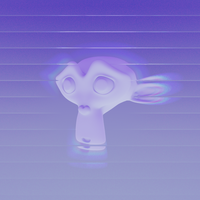
A classic frosted-glass look: continuous horizontal bands of distortion sweep across the frame, each with a soft organic wobble rather than a razor-straight edge.
- Displacement: Mode = Displace, Axis = Y/Y, Distortion Amount = −0.08, Edge Distortion Amount = −1.76
- Blur: Gaussian, Amount = 0.0, Direction = −30°, Rotation = 10°, Dispersion = 1.833
- Mask: elliptical (0.20 / 0.40 / 0.40), falloff 0.213 → 0.874
- Pattern: Line Count 1.93, Detail Scale 3.338
- Sensor Noise: Luminance 0.138, Chroma 0.080
Vertical
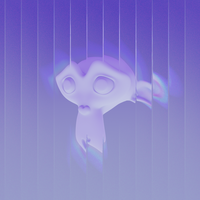
The same band style as Horizontal, rotated 90° — vertical bands with a rougher, more irregular edge for a slightly different organic texture.
- Displacement: Mode = Displace, Axis = Y/Y, Distortion Amount = −0.08, Edge Distortion Amount = −1.76
- Blur: Gaussian, Amount = 0.0, Direction = −30°, Rotation = 10°, Dispersion = 1.833
- Mask: elliptical (0.20 / 0.40 / 0.40), falloff 0.213 → 0.874
- Pattern: Line Count 1.92, Detail Scale −0.299, Detail Roughness 0.487
- Sensor Noise: Luminance 0.138, Chroma 0.080
Diagonal
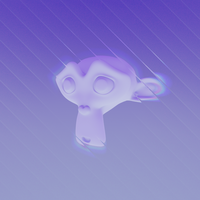
Bands lean diagonally across the frame instead of running horizontally or vertically, with a switchable lean direction — a genuinely different geometry from simply rotating Horizontal.
- Displacement: Mode = Displace, Axis = Y/Y, Distortion Amount = −0.04, Edge Distortion Amount = −1.86
- Blur: Gaussian, Amount = 0.0, Direction ≈ −34.2°, Rotation ≈ 6.0°, Dispersion = 1.0
- Mask: uniform 0.4 sphere, falloff 0.213 → 0.874
- Pattern: Line Count 3.13, Direction = Right (\), Detail 2.0, Detail Scale 1.0, Detail Roughness 0.5
- Sensor Noise: Luminance 0.10, Chroma 0.05
Circular
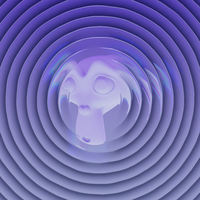
Concentric rings radiate outward from a single center point, like ripples in glass — a genuinely different pattern from Dots (which tiles many small individual circles), built from its own dedicated ring geometry.
- Displacement: Mode = Displace, Axis = Y/Y, Distortion Amount = −0.10, Edge Distortion Amount = −3.36
- Blur: Gaussian, Amount = 0.0, Direction ≈ −31.9°, Rotation = 10°, Dispersion = 1.833
- Mask: elliptical (0.20 / 0.40 / 0.40), falloff 0.654 → 0.777
- Pattern: Line Count 2.0, Spacing 0.30, Distortion 0.714, Detail 2.0
- Relief: Strength 0 (inert — reused only for Grout Darkness), Grout Darkness 0.35
- Sensor Noise: Luminance 0.138, Chroma 0.080
Dots
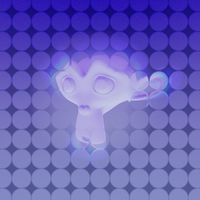
A repeating grid of small circular glass dots — a halftone/polka-dot look, with crisp, flat-faced dots and a short soft transition only at each dot's outer rim.
- Displacement: Mode = Displace, Axis = Y/Y, Distortion Amount = 0.01, Edge Distortion Amount = −5.36
- Blur: Gaussian, Amount = 0.0, Direction ≈ −32.5°, Rotation = 10°, Dispersion = 1.833
- Mask: uniform 0.367 sphere, falloff 0.122 → 1.000
- Pattern: Line Count 5.1, Spacing 0.267, Dot Size 0.727, Min Dot Radius 0.476, Edge Softness 0.128
- Relief: Strength 0.111, Grout Darkness 0.505
- Sensor Noise: Luminance 0.125, Chroma 0.080
Square
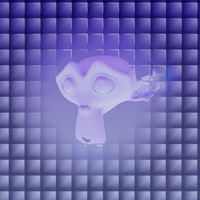
A beveled square-tile pattern with crisp, defined grout lines between tiles and a genuine embossed, non-flat feel via the Relief layer — the most “physical glass block” of the set.
- Displacement: Mode = Displace, Axis = Y/Y, Distortion Amount = −0.13, Edge Distortion Amount = −3.96
- Blur: Gaussian, Amount = 0.0, Direction ≈ −32.5°, Rotation = 10°, Dispersion = 1.833
- Mask: uniform 0.546 sphere, falloff 0.206 → 1.000
- Pattern: Line Count 1.6, Spacing 0.312
- Relief: Strength 0.111, Grout Darkness 0.35, Light X 0.986, Light Y 0.752
- Sensor Noise: Luminance 0.131, Chroma 0.080
Blur Direccional
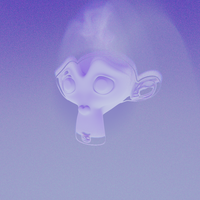
No geometric pattern at all — just a soft, clearly-oriented directional blur streak. The simplest preset, ideal for a subtle motion/glass-smear feel without any repeating lines.
- Displacement: Distortion Amount = 0, Edge Distortion Amount = 0 (nothing warps — the whole look comes from Blur)
- Blur: Directional, Amount = 0.45, Direction = 0°, Rotation = 0°, Dispersion = 0.2
- Mask: uniform 0.22 sphere, falloff 0.05 → 0.35 (a tight, fast falloff)
- Sensor Noise: Luminance 0.131, Chroma 0.080
Hexagonal
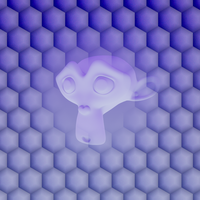
A honeycomb tile pattern with a softer, more diffuse glass look than Square — hex cells read as a continuous, smoothly-faceted surface (no grout seam by default) with a strong directional highlight across each facet.
- Displacement: Mode = Displace, Axis = Y/Y, Distortion Amount = 0.0, Edge Distortion Amount = 1.0
- Blur: Gaussian, Amount = 0.5 (higher than most patterns, for a softer look), Direction = −30°, Rotation = 10°, Dispersion = 1.381
- Mask: uniform 0.375 sphere, falloff 0.148 → 1.000
- Pattern: Line Count 4.3, Spacing 0.0 (no seam)
- Relief: Strength 0.179, Grout Darkness 0.5, Light X 1.878 (an especially strong, off-axis highlight), Light Y 0.752
- Sensor Noise: Luminance 0.086, Chroma 0.080
Rain (Lluvia)
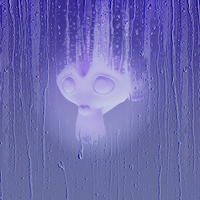
The most photoreal pattern — instead of a procedural texture, it samples a real black-and-white rain-on-glass reference photo (one of 4 bundled options, switchable from a thumbnail picker), giving genuinely organic droplet and rivulet shapes with real per-pixel highlight shading.
- Displacement: Mode = Displace, Axis = Y/Y, Distortion Amount = 0.08, Edge Distortion Amount = 1.7
- Blur: Gaussian, Amount = 0.3, Direction = −30°, Rotation = 10°, Dispersion = 1.2
- Mask: uniform 0.523 sphere, falloff 0.15 → 0.85
- Pattern: Black Point 0.0, White Point 0.709, Relief Boost 4.0
- Relief: Strength 0.339, Grout Darkness 0.528, Light X 0.965, Light Y 0.053 (a low, flat, side-on highlight along each rivulet)
- Sensor Noise: Luminance 0.10, Chroma 0.08
- 4 selectable reference photos: fine droplets with long streaks (even lighting); denser, higher-contrast streaks (even lighting); large round droplets with a strong central highlight; a similar large-droplet look with sharper, more defined streaks.
Troubleshooting
The mask doesn't seem to do anything — distortion covers the whole frame
Make sure a camera is assigned to the scene (Scene Properties, or check the panel's own warning banner) — the mask's 3D-to-2D projection requires an active camera to work at all.
I accidentally deleted my mask Empty
The panel shows “Mask empty was deleted — pick a new Empty below.” Assign any Empty object in the Empty field to recover, or use Add Glassify Effect again if the whole setup needs rebuilding.
Moving or rotating my Rectangle mask does nothing (fixed in v2.18+)
Update to the latest version — earlier builds had a node-graph staleness bug specific to the mask-type swap.
The Rectangle mask still shows visible film grain inside its clean area (fixed in v2.20+)
Update to the latest version.
The Blur Amount slider seems to stop having any effect above a certain point (Directional Blur only) (fixed in v2.21+)
Update to the latest version — Amount now keeps increasing blur intensity well past 1.0.
Switching patterns changed values I had tuned on a different preset
This should never happen — every pattern holds fully independent state. If it does, the .blend file likely predates the per-pattern-state system and should be re-saved after visiting each pattern once.
Support
For questions, bug reports, or suggestions, reach out through our support channel.
Credits
Author: Toquica